

HOW TO: Set up a Twilio Account for Two-way Texting
To use Poppy Bridal Software’s two way texting feature within the Messaging Center, you will need to set up a paid twilio account with a local number.
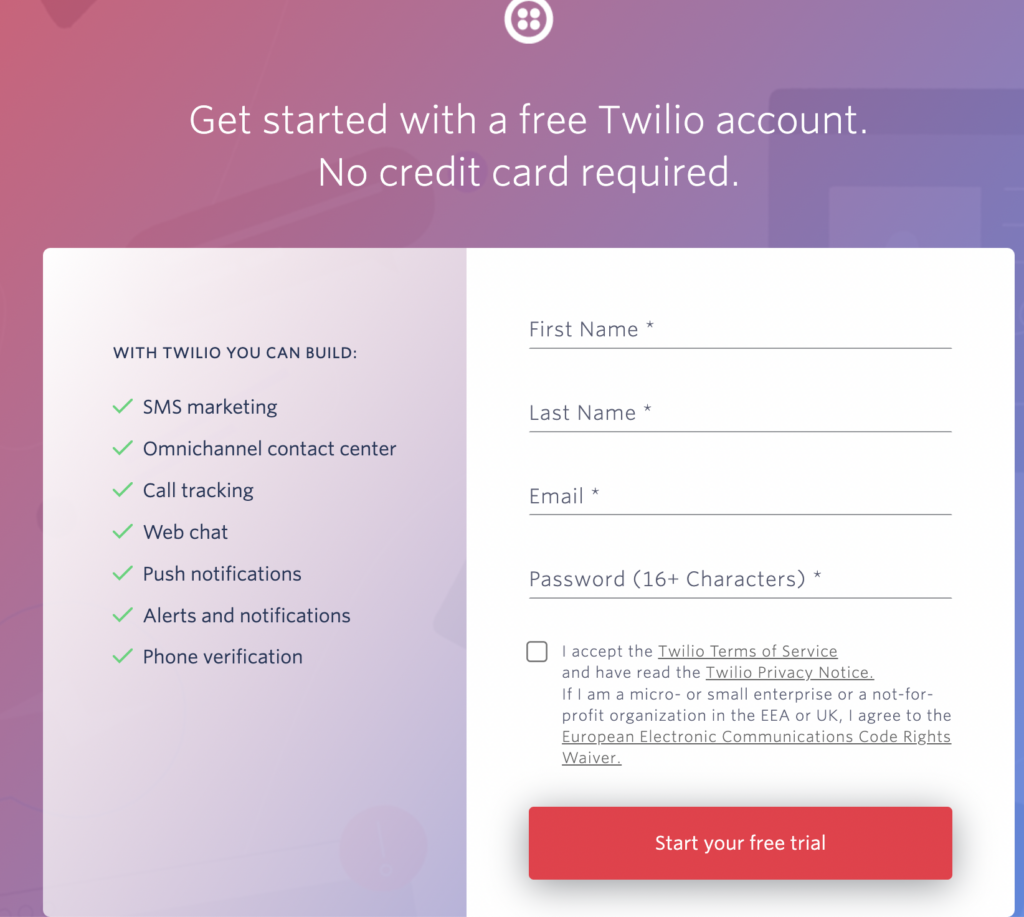
- Visit www.twillio.com and select the ‘Start For Free’ button in the top right corner of the navigation bar.

- Fill in the required fields within the set up form.
- First Name, Last Name, Email, and Password
- You will also need to review the Terms of Service and check that you agree.
- Click ‘Start your Free Trial’
- Next, check your inbox for a verification email in order to ‘verify’ your account.
- Once you’ve verified your email, you will need to verify a phone number that is able to receive a text message code.
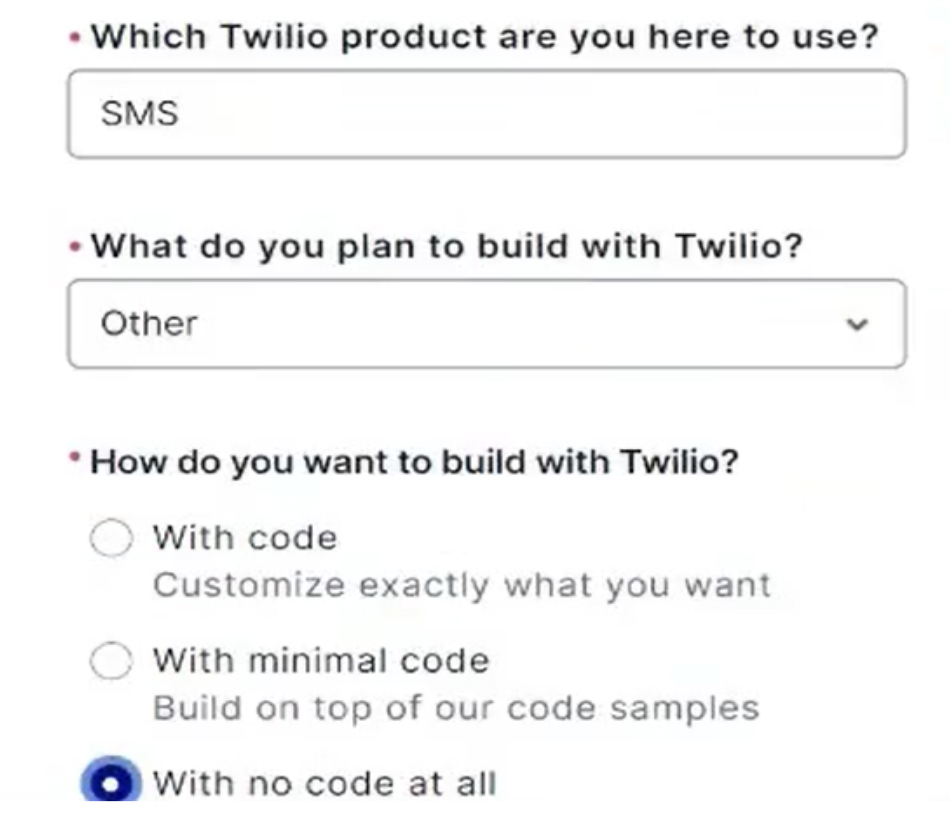
- Next, you’ll need to answer a few question for the Twilio user experience. Please follow the example shown below.
- Which Twilio Product are you here to use? –SMS
- What do you Plan to Build with Twilio- Other
- How do you want to build with Twilio- With no code at all
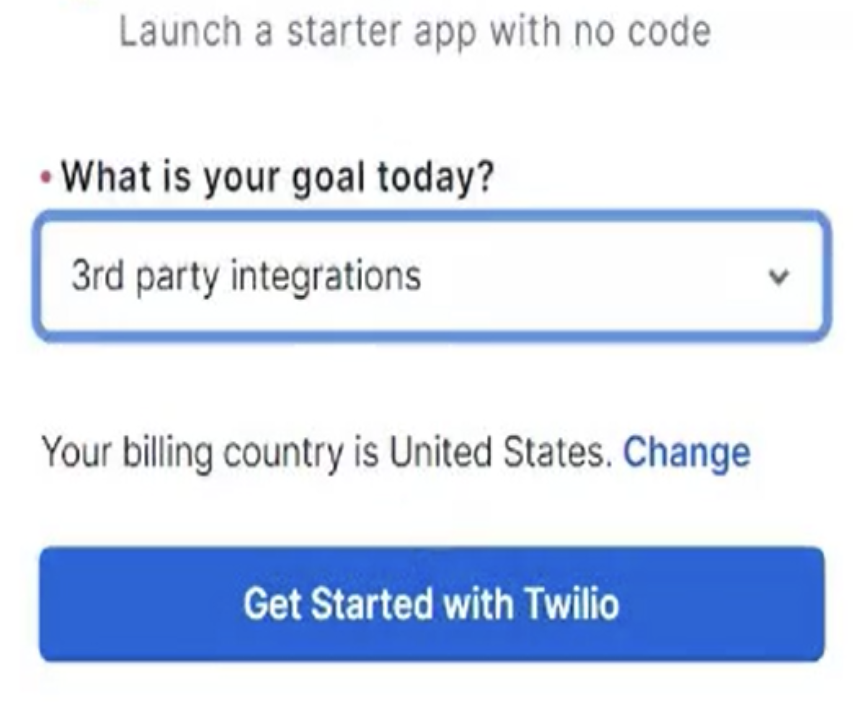
- What is your Goal Today? – 3rd party integrations
Once you are set up with a free Twilio account, you will be taken to your Twilio Dashboard.
- From here, you will need to upgrade your plan to a paid account by clicking on the ‘upgrade’ link in the top navigation.

- Next, sign up for a local phone number.
- Your Twilio number needs to be a local number, two-way texting within Poppy will not work with a toll-free number.
- Next, navigate to Twilio Messaging Configuration
- Twilio Console > Phone Numbers> Manage > Active Numbers

- After clicking on Active Numbers, Click the Twilio Phone Number listed
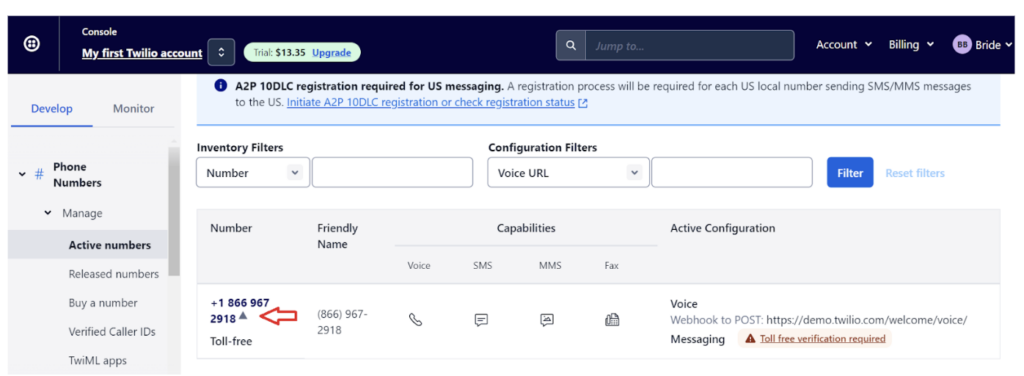
- On the next screen, scroll down to Messaging Configuration
- Find the drop down for ‘when a message comes in’
- Choose Webhook in the drop down
- Next, paste Poppy’s webhook within the URL text field:
- https://api.b21.gravity-aws.com/poppywebhook/v2/smsReceiver
- Choose HTTP POST within the HTTP drop down.
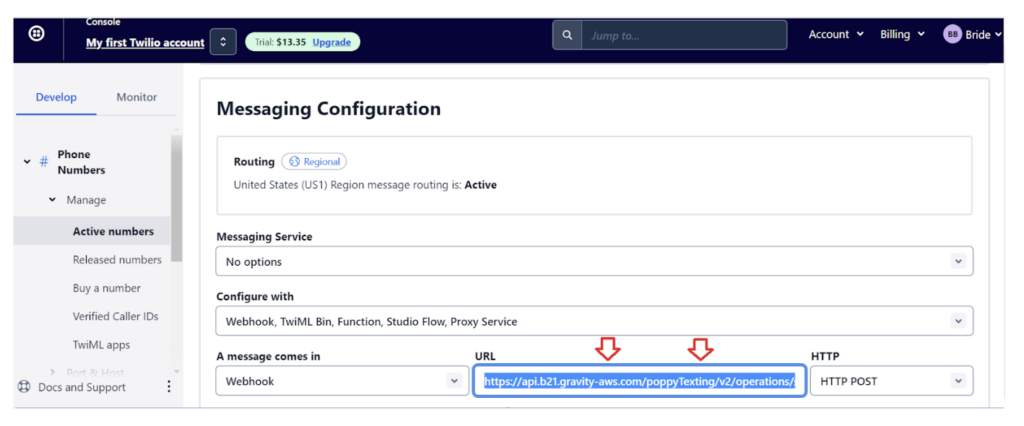
- Scroll to the bottom and click, Save Configuration.
Next, learn HOW TO: Connect your Twilio Account to Poppy – coming August 21st